How to Print ID Cards on A4 Paper Perfectly
Learn how to arrange front and back sides of ID cards on a single A4 page for printing. Align, crop, and resize automatically.
We've all been there. You need to submit a photocopy of your physical card or Driving License. You have two photos on your phone—one of the front, one of the back.
You open Microsoft Word, paste the images, and then struggle for 20 minutes dragging them around. One image is giant, the other is tiny. When you print it, the dimensions are wrong, and the clerk rejects it.
Stop struggling with Word or Photoshop. The ID Card Arranger is a specialized tool designed to do exactly one thing:Place ID cards on an A4 sheet perfectly.
The Problem with Standard Printing
An actual ID card (credit card size) is exactly 85.6mm x 54mm. When you take a photo with your phone, the aspect ratio depends on your camera, not the card. If you just print that photo, it will fill the whole A4 page, which is a waste of ink and paper.
How to Use the ID Card Arranger
Step 1: Upload Front and Back
Open the tool and click "Add Cards". Select the front and back images of your ID. You don't need to crop them perfectly yet—just make sure the card is visible.
Step 2: The Magic Crop (Deskew)
This is the coolest feature. Photos of ID cards are often taken at an angle (skewed).
- Click on the card image.
- Select the "Rotate & Crop" icon in the toolbar.
- You will see four corner points. Drag them to match the four corners of your actual physical card in the photo.
- Click "Crop & Flatten".
The tool will automatically stretch and straighten the image into a perfect rectangle, removing the background table or bedsheet.
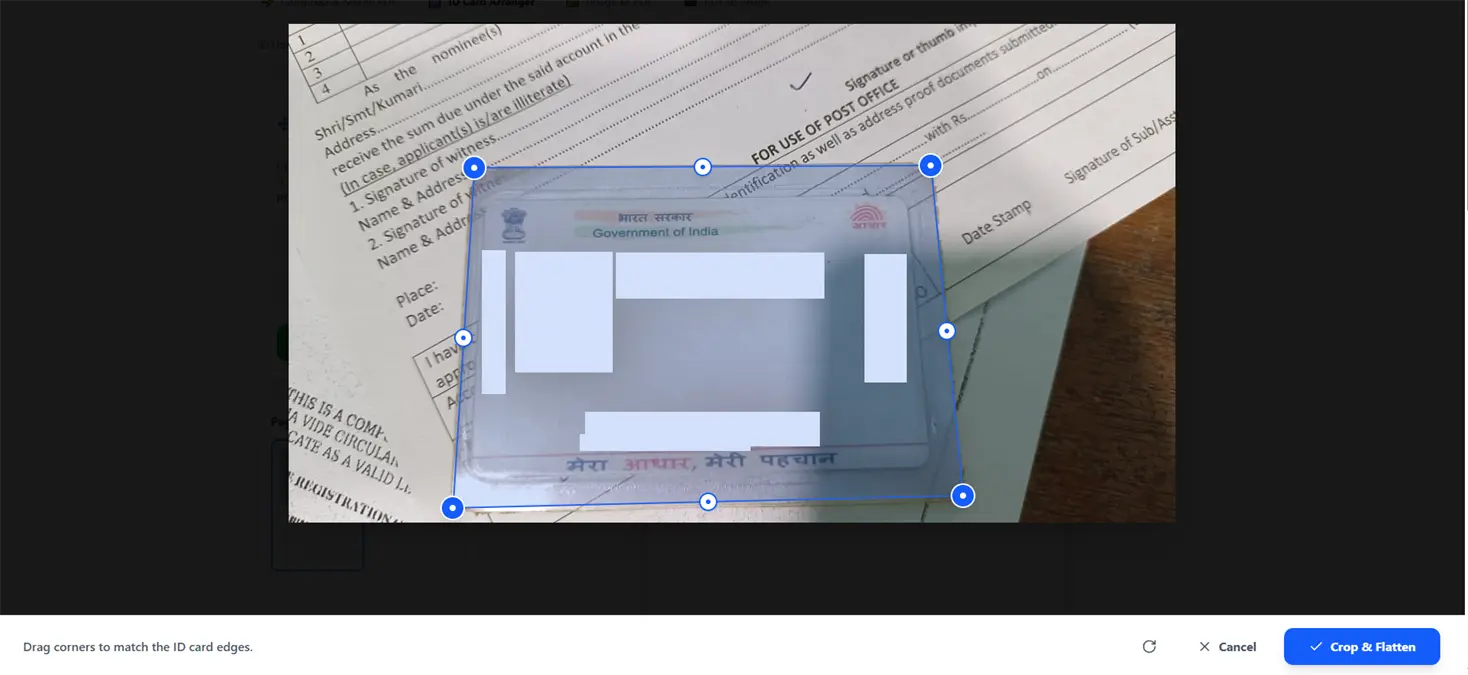
Visual Guide: Adjusting the four corners to perfectly align a skewed photo of an ID card.
Step 3: Arrange on A4
The canvas represents a real A4 paper. Our tool automatically scales your cropped image to the standard ID card size relative to the A4 sheet.
- Drag the Front to the top-left.
- Drag the Back right next to it, or below it.
- Need multiple copies? Upload the same file again to create duplicates on the same page.
Step 4: Save as PDF
Click "Download PDF". You will get a high-quality PDF file. When you print this file (ensure "Scale" is set to 100% or "Actual Size" in printer settings), your ID card will come out the exact size of the original plastic card.
Advanced Tips for Shops & CSC Centers
If you run a printing shop, this tool can save you hours.
- Filters: Use the "High Contrast" or "B&W" filter to make text sharper on Xerox machines.
- Multi-Page: You can add multiple A4 pages if you are processing IDs for a whole family.
- Privacy: Since it works offline, you don't need to worry about customer data leaks.
Why waste time resizing in Paint? Try the ID Card Arranger now.
ID Card Arranger Tool
The fastest way to align front and back of your cards on a single A4 page. Perfect for students and VLEs.
Arrange IDs NowMore from the web
About the author

PDfriend Team
Developers & Security Advocates
Focus
Development & Cybersecurity
Experience
Combined Experience
The Mission Behind pdfriend.in
"With years of combined experience in development, cybersecurity, and the evolving internet landscape, our team is driven by a shared technical mission. The recent surge in document forgery and identity fraud is what led us to build pdfriend.in together. We have engineered this platform to be entirely 'Zero-Server' because we believe in absolute data privacy. While our team ensures these tools are secure, we always remind our users that true safety also requires protecting your own devices from untrusted software and local malware."
Commitment to Safety: Every tool on this platform is strictly audited by our developers and built to operate 100% offline. No cloud, no risk, no compromises.